
A practical guide
Take YouTube notes.
Keep them in Obsidian.
Capture an idea where you find it. Copy your notes as Markdown, then keep them in your own vault with links back to the exact video moments.
Start with one useful moment.
You need Video Notes in a desktop browser, an ordinary YouTube watch page, and an Obsidian vault. Local notes and Markdown copying are free. This workflow needs no Video Notes account, paid sync, or Gemini API key.
Before watching, choose one question you want the video to answer. When a useful idea appears, write a short note in your own words. You can expand it later in Obsidian.
Both use the maker’s demo video with illustrative practice notes. The sample notebook is a read-only shared page; the Markdown example is the three-note file used in this guide. Neither is a transcript or a summary of the video.
01 / Capture
Write your thought beside the video.
- Install Video Notes and reload any YouTube tab that was already open. Open a regular video watch page.
- At a useful moment, choose + Add note below the player, or press Alt + N on Windows/Linux or Option + N on Mac.
- Write one short idea. Choose Save or press Ctrl/Cmd + Enter. Your note keeps the timestamp; playback resumes if it was playing before.
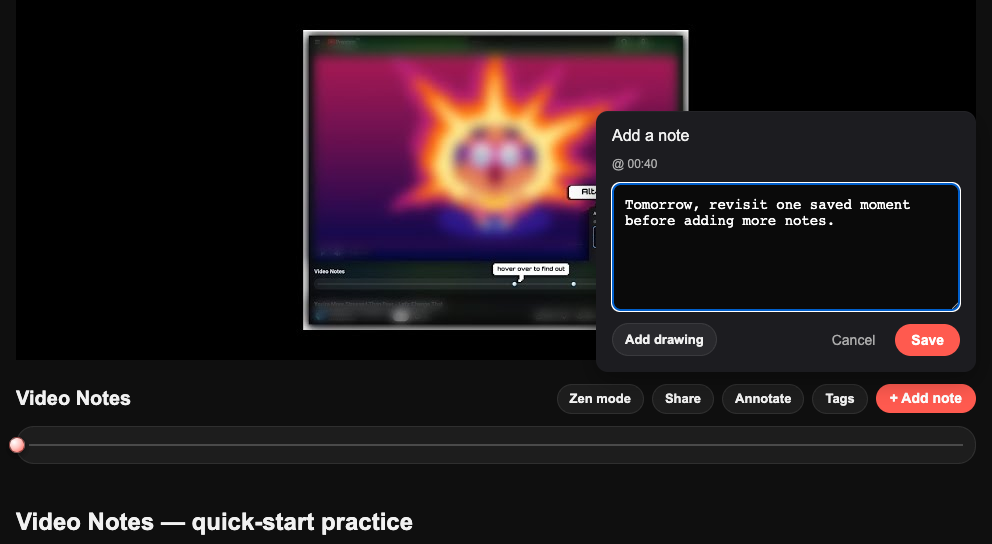
For a diagram, use Annotate or Alt/Option + A to draw on a paused frame. The text-only example below keeps the Markdown handoff simple.
02 / Copy
Copy that video’s notes as Markdown.
- Open the Video Notes extension popup and choose Open page.
- Find the video in your library. Hover over its card, or move keyboard focus into it, to show the card’s actions. Choose Markdown. A “Markdown copied to clipboard!” message confirms it worked.
- Keep the copied text ready for a new Obsidian note. Timestamp links point directly to YouTube, so they work outside Video Notes too.
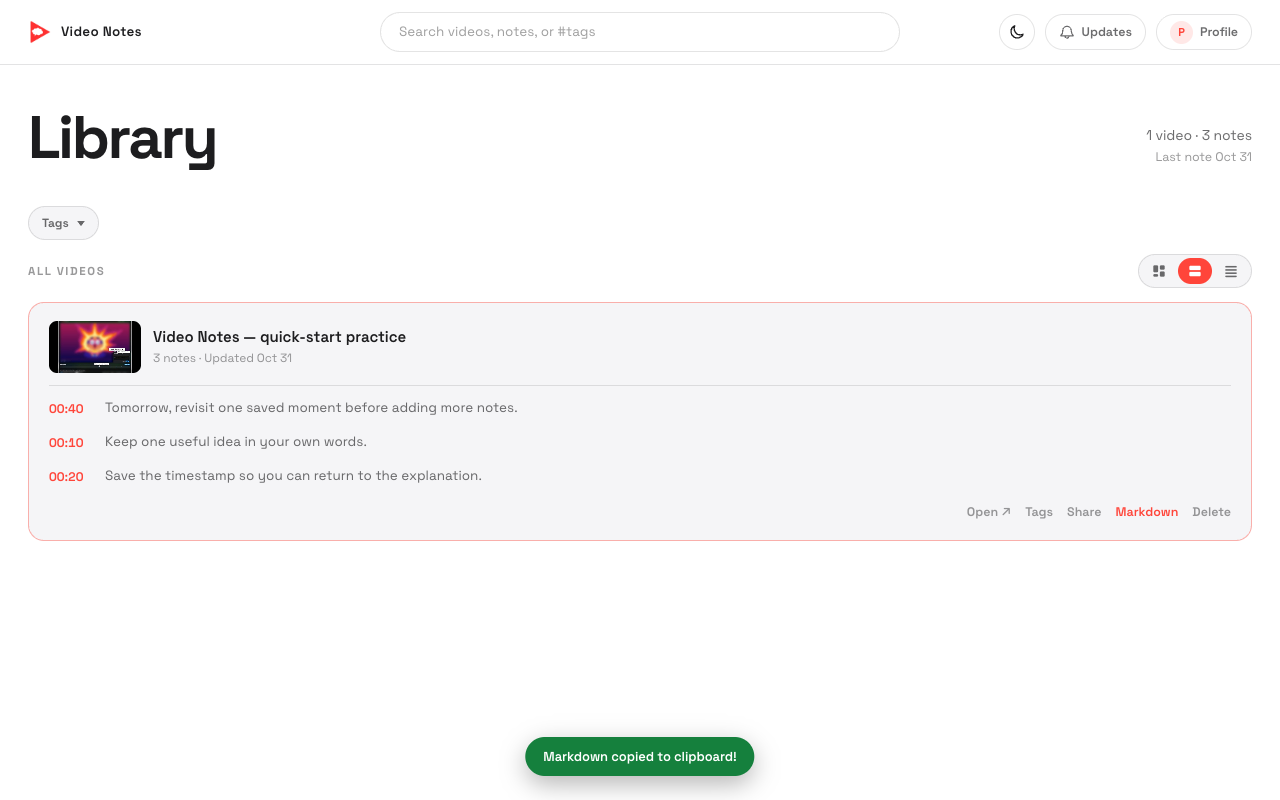
See the exact Markdown output
[Video Notes — quick-start practice](https://www.youtube.com/watch?v=rOi7xQ8DLpo)

- [00:10](https://www.youtube.com/watch?v=rOi7xQ8DLpo&t=10s): Keep one useful idea in your own words.
- [00:20](https://www.youtube.com/watch?v=rOi7xQ8DLpo&t=20s): Save the timestamp so you can return to the explanation.
- [00:40](https://www.youtube.com/watch?v=rOi7xQ8DLpo&t=40s): Tomorrow, revisit one saved moment before adding more notes.
Use Markdown, not “Export notes”. The settings action named Export notes creates a full-library JSON backup. That backup is for restoring Video Notes, not for pasting into Obsidian.
03 / Keep
Paste into a note in your vault.
- In Obsidian, create a new note with Ctrl/Cmd + N, name it YouTube practice, and press Enter.
- Paste the copied Markdown into the note body. No import plugin is needed.
- Switch to Reading view to check the result. Open a timestamp link to return to that moment on YouTube.
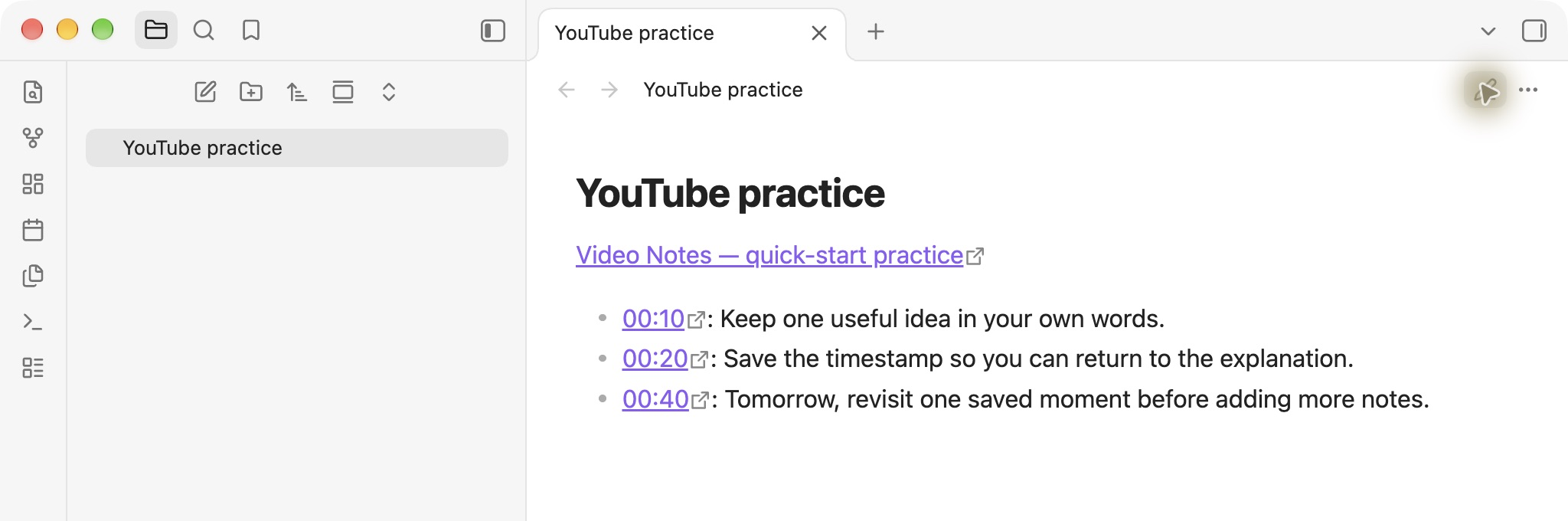
Want a file instead? The downloadable example is a plain .md file. Place it in your vault folder or drag it into Obsidian’s file explorer. It contains the same illustrative notes shown in this guide.
04 / Revisit
Make the note worth opening tomorrow.
Add one sentence below the copied notes: “I’ll use this when…” Connect it to a project or an existing note in your vault. Tomorrow, try recalling the idea before opening its timestamp.
You can keep using the free local browser workflow and copy again when you have more notes. This is a manual handoff: later edits do not automatically update the Obsidian copy.
A few things to know.
I don’t see the Markdown action.
A card’s actions appear when you hover over it or move keyboard focus into it. Markdown copying is on by default. If you turned it off, open Video Notes settings, find Markdown Export, and enable it again. The template can also be customized there.
Do drawings move into Obsidian too?
With the default template, each saved drawing is added as an inline image of your strokes only, on a transparent background, without the video frame. Open its timestamp link to see the moment it belongs to. The image is embedded as data, so it can make the Markdown long, and light strokes may be hard to see on a light theme. To copy text only, remove *annotation-image* from the template in settings.
Is this an Obsidian plugin or automatic vault sync?
No. Video Notes is a browser extension. You copy Markdown and paste it into Obsidian. Optional paid Backup & Sync connects Video Notes browsers; it does not synchronize an Obsidian vault.
Obsidian reference: create your first note · import Markdown files.